Introduction
Installing LabKey for your lab can be done a number of ways. This approach manually installs virtually all components of the LabKey software stack, allowing for easy long-term maintenance and upgrades.
Section 1 — Setting up CentOS 7
Begin by installing RHEL or CentOS 7 on your hardware or VM. For these instructions the CentOS 7 Minimal ISO was selected and installed in a VM with 8 GB memory, 2 cores, and a 64 GB drive. See LabKey's recommended hardware requirements before sizing your own.
After the install reboots, disable NetworkManager and configure a static IP via the networking scripts:
[root@localhost]# systemctl disable NetworkManager
Removed symlink /etc/systemd/system/multi-user.target.wants/NetworkManager.service.
Removed symlink /etc/systemd/system/dbus-org.freedesktop.NetworkManager.service.
Removed symlink /etc/systemd/system/dbus-org.freedesktop.nm-dispatcher.service.
Configure the network script with values appropriate for your environment. Make sure ONBOOT is set to yes:
[root@localhost]# vi /etc/sysconfig/network-scripts/ifcfg-eth
TYPE=Ethernet
NAME=eth0
IPADDR=10.17.0.101
NETMASK=255.255.255.0
GATEWAY=10.17.0.1
DNS1=8.8.8.8
DNS2=8.8.4.4
NM_CONTROLLED=no
BOOTPROTO=static
ONBOOT=yes
USERCTL=no
DEFROUT=yes
PEERDNS=yes
PEERROUTES=yes
IPV4_FAILURE_FATAL=no
IPV6INIT=no
[root@localhost]# systemctl restart network
Set a hostname if not configured at install time:
[root@localhost]# hostnamectl set-hostname lims-1
[root@lims_1 ~]# hostname lims-1
Update the system and reboot:
[root@lims_1 ~]# yum -y update; reboot
Section 2 — Preparing for LabKey's installation
Download the Server Java JRE from Oracle, LabKey from labkey.org, PostgreSQL, and Apache Tomcat. Move to the src directory and unpack everything there.
[root@lims_1 ~]# yum install wget gcc
[root@lims_1 ~]# cd /usr/local/src
After downloading and unpacking, your /usr/local/src directory should look similar to this (version numbers will differ):
[root@lims-1 src]# ll -h
total 242M
drwxr-xr-x. apache-tomcat-8.5.4
drwxr-xr-x. jdk1.8.0_101
drwxr-xr-x. LabKey16.2-45209.14-community-bin
drwxrwxrwx. postgresql-9.5.3
Create versioned directories in /usr/local and soft-link generic names to each — this makes future upgrades a single symlink change:
[root@lims_1 ~]# cd /usr/local
[root@lims_1 local]# mkdir labkey-16.2 jre-8u101 tomcat-8.5.4 postgres-9.5.3
[root@lims-1 local]# ln -s labkey-16.2 labkey
[root@lims-1 local]# ln -s postgres-9.5.3 pgsql
[root@lims-1 local]# ln -s jre-8u101 java
[root@lims-1 local]# ln -s tomcat-8.5.4 tomcat
Install the JRE by moving it into the java directory:
[root@lims_1 local]# cd /usr/local/src
[root@lims-1 src]# mv jdk1.8.0_101/* ../java/
Install and enable Apache to confirm the network stack is working before continuing:
[root@lims-1 local]# yum install httpd
[root@lims-1 local]# systemctl start httpd
Verify it is working by loading http://10.17.0.101 in a browser. Then make httpd start permanently:
[root@lims-1 local]# systemctl enable httpd
Section 3 — Installing Tomcat 8
First, set the Java environment so the system always uses the right JRE regardless of any default CentOS Java installation:
[root@lims-1 local]# vi /etc/profile.d/java_env.sh
Enter the following, then save and close:
export JAVA_HOME=/usr/local/java
export PATH=$JAVA_HOME/bin:$PATH
Source the file and verify Java is working:
[root@lims-1 local]# source /etc/profile.d/java_env.sh
[root@lims-1 local]# java -version
java version "1.8.0_101"
Java(TM) SE Runtime Environment (build 1.8.0_101-b13)
Java HotSpot(TM) 64-Bit Server VM (build 25.101-b13, mixed mode)
Move the Tomcat files, create a dedicated user, and set permissions:
[root@lims-1 local]# cp -R apache-tomcat-8.5.4/* /usr/local/tomcat-8.5.4/
[root@lims-1 local]# cd /usr/local/tomcat
[root@lims-1 tomcat]# groupadd tomcat
[root@lims-1 tomcat]# useradd -s /bin/nologin -g tomcat -d /usr/local/tomcat tomcat
[root@lims-1 tomcat]# chown -R tomcat.tomcat /usr/local/tomcat-8.5.4
[root@lims-1 tomcat]# chmod g+rwx conf
[root@lims-1 tomcat]# chmod g+r conf/*
Create a systemd service file tuned for LabKey:
[root@lims-1 tomcat]# vi /etc/systemd/system/tomcat.service
# Systemd unit file for tomcat
[Unit]
Description=Apache Tomcat Web Application Container
After=network.target

[Service]
Type=forking
PIDFile=/usr/local/tomcat/temp/tomcat.pid
Environment=JAVA_HOME=/usr/local/java
Environment=CATALINA_PID=/usr/local/tomcat/temp/tomcat.pid
Environment=CATALINA_HOME=/usr/local/tomcat
Environment=CATALINA_BASE=/usr/local/tomcat
Environment='CATALINA_OPTS=-Xms512M -Xmx2048M -server -XX:-HeapDumpOnOutOfMemoryError'
Environment='JAVA_OPTS=-Djava.awt.headless=true -Djava.security.egd=file:/dev/./urandom'
ExecStart=/usr/local/tomcat/bin/startup.sh
ExecStop=/usr/local/tomcat/bin/shutdown.sh
User=tomcat
Group=tomcat

[Install]
WantedBy=multi-user.target
Integrate with systemd and start the service:
[root@lims-1 tomcat]# systemctl daemon-reload
[root@lims-1 tomcat]# systemctl start tomcat
Verify Tomcat is running by loading http://10.17.0.101:8080 in a browser.
Section 4 — Installing PostgreSQL
Install the OpenSSL development libraries and build dependencies, then compile PostgreSQL from source with SSL support:
[root@lims-1 tomcat]# yum install openssl*64 bison* readline*
[root@lims-1 tomcat]# cd ../src/postgresql-9.5.3
[root@lims-1 postgresql-9.5.3]# ./configure --with-openssl --prefix=/usr/local/pgsql
[root@lims-1 postgresql-9.5.3]# make
You should see "All of PostgreSQL successfully made. Ready to install." at the end of the build. Then:
[root@lims-1 postgresql-9.5.3]# make install
Create the postgres user and group, initialise the database cluster, and set up logging:
[root@lims-1 pgsql]# groupadd postgres
[root@lims-1 pgsql]# adduser postgres -g postgres -d /usr/local/pgsql
[root@lims-1 pgsql]# passwd postgres
[root@lims-1 pgsql]# chown -R postgres /usr/local/postgres-9.5.3
[root@lims-1 pgsql]# su postgres
bash-4.2$ bin/initdb -D /usr/local/pgsql/data
bash-4.2$ exit
[root@lims-1 pgsql]# mkdir -p /var/log/pgsql
[root@lims-1 pgsql]# chown -R postgres:postgres /var/log/pgsql/
In data/postgresql.conf, uncomment and set the logging directory:
logging_collector = on
log_directory = '/var/log/pgsql/'
Add psql to your PATH permanently:
[root@lims-1 pgsql]# vi /etc/profile.d/postgresql.sh
export PATH=/usr/local/pgsql/bin:$PATH
[root@lims-1 pgsql]# source /etc/profile.d/postgresql.sh
Create the systemd service file for PostgreSQL:
[root@lims-1 pgsql]# vi /etc/systemd/system/postgres.service
# Systemd unit file for PostgreSQL
[Unit]
Description=PostgreSQL database server
After=network.target

[Service]
Type=forking
User=postgres
Group=postgres
OOMScoreAdjust=-1000
Environment=PG_OOM_ADJUST_FILE=/proc/self/oom_score_adj
Environment=PG_OOM_ADJUST_VALUE=0
Environment=PGSTARTTIMEOUT=270
Environment=PGDATA=/usr/local/pgsql/data
ExecStart=/usr/local/pgsql/bin/pg_ctl start -D ${PGDATA} -s -w -t ${PGSTARTTIMEOUT}
ExecStop=/usr/local/pgsql/bin/pg_ctl stop -D ${PGDATA} -s -m fast
ExecReload=/usr/local/pgsql/bin/pg_ctl reload -D ${PGDATA} -s
TimeoutSec=300

[Install]
WantedBy=multi-user.target
[root@lims-1 pgsql]# systemctl daemon-reload
[root@lims-1 pgsql]# systemctl enable postgres
[root@lims-1 pgsql]# systemctl start postgres
Log into postgres and set a strong password for the superuser:
[root@lims-1 pgsql]# su postgres
bash-4.2$ psql
postgres=# alter user "postgres" with password 'your-strong-password-here';
postgres=# \q
Tighten security by requiring password authentication in data/pg_hba.conf. Near the bottom of the file, update the entries to use md5:
# "local" is for Unix domain socket connections only
local   all         postgres                              md5
# IPv4 local connections:
host    all         all           127.0.0.1/32            md5
# IPv6 local connections:
host    all         all           ::1/128                 md5
[root@lims-1 pgsql]# systemctl restart postgres
Section 5 — Installing LabKey
Move to the LabKey source directory and copy the Tomcat JAR files:
[root@lims-1 pgsql]# cd /usr/local/src/LabKey16.2-45209.14-community-bin
[root@lims-1 LabKey16.2-45209.14-community-bin]# cp tomcat-lib/* /usr/local/tomcat/lib/
Copy the three application directories to /usr/local/labkey:
[root@lims-1 LabKey16.2-45209.14-community-bin]# cp -R labkeywebapp /usr/local/labkey/
[root@lims-1 LabKey16.2-45209.14-community-bin]# cp -R modules /usr/local/labkey/
[root@lims-1 LabKey16.2-45209.14-community-bin]# cp -R pipeline-lib /usr/local/labkey/
Set ownership so the Tomcat process can write to the required directories:
[root@lims-1 LabKey16.2-45209.14-community-bin]# chown -R tomcat.tomcat /usr/local/labkey-16.2
bin/ files component or SSL setup. See the LabKey documentation for those steps if needed.
Copy the LabKey context file into Tomcat, renaming it to ROOT.xml to serve LabKey at the root URL:
[root@lims-1 LabKey16.2-45209.14-community-bin]# cp labkey.xml /usr/local/tomcat/conf/Catalina/localhost/ROOT.xml
Edit ROOT.xml and make the following replacements:
- Replace
@@appDocBase@@with/usr/local/labkey/labkeywebapp - Replace
@@jdbcUser@@and@@jdbcPassword@@with your postgres credentials - Replace
@@masterEncryptionKey@@with a randomly generated 32-character ASCII string - Change the JDBC URL port from
8080to5432
Restart Tomcat to load the new configuration:
[root@lims-1 LabKey16.2-45209.14-community-bin]# systemctl restart tomcat
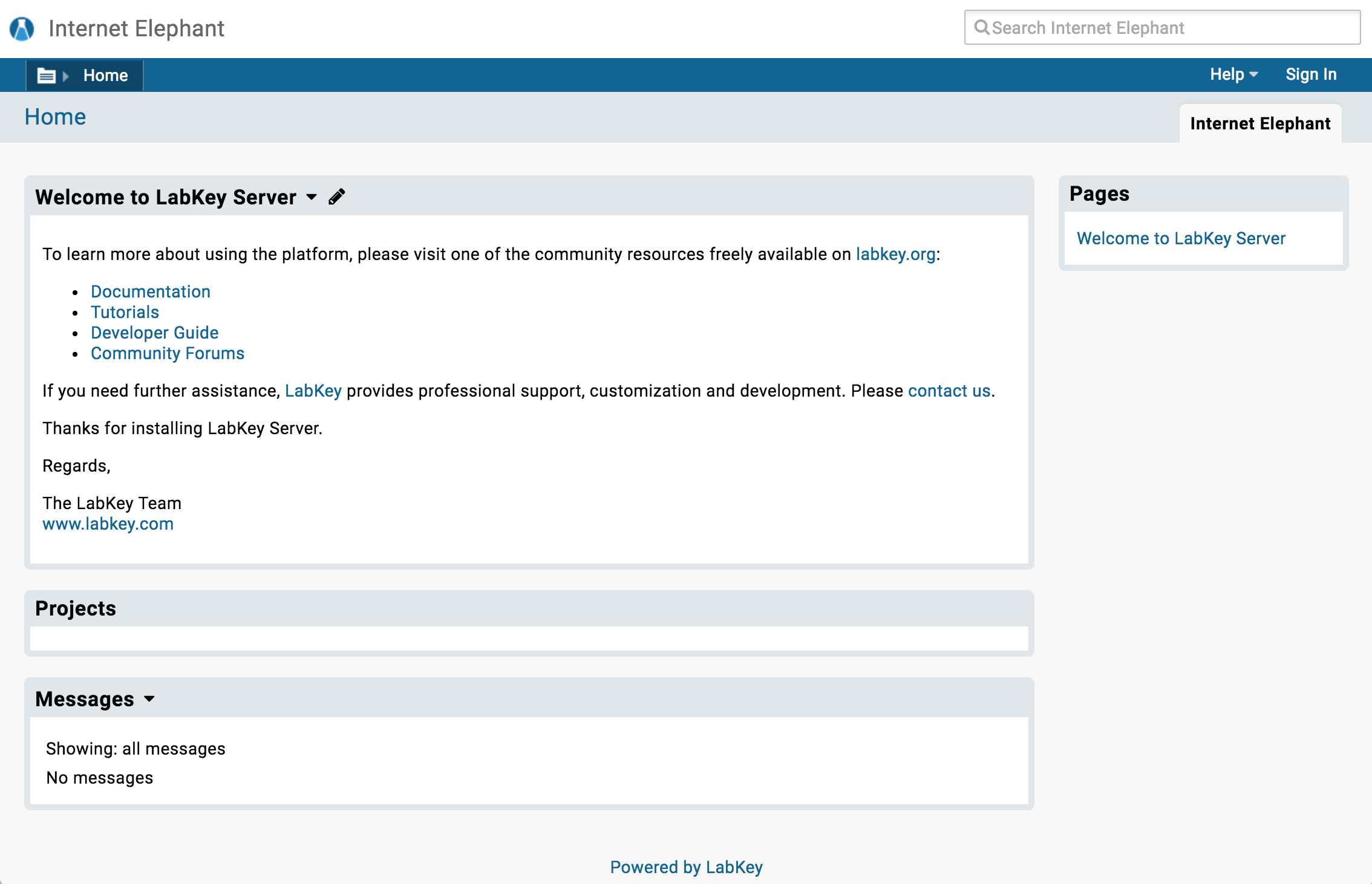
Load LabKey in your browser at http://10.17.0.101:8080. A setup wizard will appear and guide you through the rest of the configuration.